

How to Disable Microsoft Copilot and AI Tools on School Devices: A Complete Guide for K-12 and Higher Ed IT Teams
Turn off built-in AI in Windows and Edge, then give teachers classroom controls of their own.

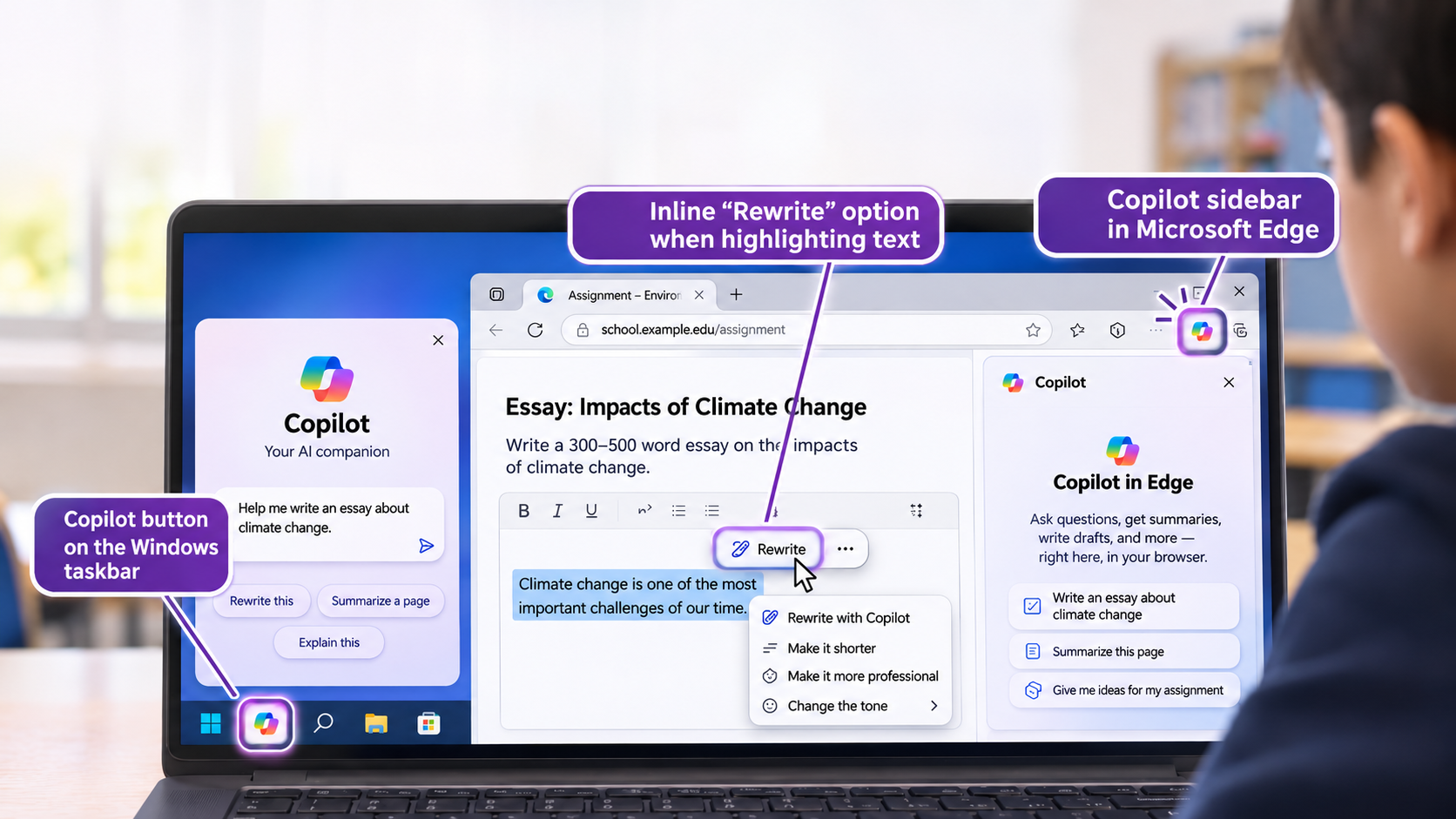
Turning off Copilot is no longer a single switch. Students can now get AI-written answers without leaving the tools your school already manages: a Copilot button on the Windows taskbar, a Copilot sidebar in Microsoft Edge, and an inline “Rewrite” option that pops up the moment they highlight text in a web form.
Because these tools are built into Windows and Edge, a website blocklist never touches them. The result is a ticket almost every IT team now gets: “Students are using AI right inside their browser to write their essays, and none of our tools stop it. How do we turn it off?”
This guide answers that ticket in four parts: switch off Copilot and the other built-in AI with Group Policy and Intune, give teachers live classroom controls for everything else, set clear rules for exams and assignments, and review submitted work afterward.
How to stop AI cheating on Microsoft devices
Microsoft’s built-in administrative controls (Group Policy and Microsoft Intune) cover the foundation at zero extra licensing cost. They let IT strip native Copilot triggers out of Windows 11 and Edge and enforce baseline URL blocklists.
Native policies are static and apply to everyone in a group, though. To fill the operational gaps without burying your helpdesk in daily unblock tickets, schools pair Microsoft policies with classroom management and web filtering software (such as Senso Cloud, Impero Education Pro or StudentKeeper) for daily teacher-led screen monitoring, lockdown browsers for high-stakes exams, and clear academic integrity rules on assignments, then use an AI detector to review submitted work.
The sections below show how to set up each part.
In this guide
01How to stop AI cheating02Turn off built-in AI with Group Policy and Intune03Fill the gaps with classroom monitoring software04Add exam lockdown browsers and assignment rules05Check submitted work with an AI detector06Checklist: validate before buyingTurn off built-in AI with Microsoft Group Policy and Intune at no extra cost
These controls cost nothing extra and are always the best starting point. Because the policies come straight from Microsoft’s official ADMX templates and the Intune Settings Catalog, they reliably remove built-in OS and browser AI triggers across managed student devices.
Disable Windows Copilot on the taskbar (GPO, Intune and the 24H2 app)
Depending on which build of Windows 11 your school runs, Microsoft handles the Windows Copilot experience through both a Group Policy or CSP setting and, on Windows 11 24H2 and newer, a provisioned inbox app (Microsoft.Copilot). To lock it down completely, configure both.
A. Via local Group Policy or Active Directory GPO
- Open the Group Policy Management Console (
gpmc.msc) and edit your Student User GPO. - Navigate to
User Configuration > Administrative Templates > Windows Components > Windows Copilot. - Double-click Turn off Windows Copilot and set it to Enabled.
Registry equivalent: HKCU\Software\Policies\Microsoft\Windows\WindowsCopilot → TurnOffWindowsCopilot (REG_DWORD = 1).
B. Via Microsoft Intune (Settings Catalog)
- Sign in to the Microsoft Intune admin center.
- Go to Devices > Manage devices > Configuration > Create > New policy.
- Select Platform: Windows 10 and later and Profile type: Settings catalog, then click Create.
- In the Settings picker, search for
Windows AI. - Check Turn off Windows Copilot (User) and toggle it to Enabled (
True). - For newer Windows 11 24H2 and Copilot+ PCs, enable Turn off Click to Do (
DisableClickToDo) and Turn off Saving Snapshots for Windows (Recall) (DisableAIDataAnalysis) in the same Windows AI category.
C. Crucial step for Windows 11 (23H2 and 24H2+): remove or block the standalone Copilot app
In recent Windows 11 updates, Microsoft moved Copilot into a standalone app package (Microsoft.Copilot). So students cannot launch the app from the Start menu even after the policy is applied, deploy a quick Intune PowerShell script or an AppLocker rule.
# Run as Administrator / System via Intune Scripts to remove the Copilot app for all users
Get-AppxPackage -AllUsers *Microsoft.Copilot* | Remove-AppxPackage -AllUsers
Get-AppxProvisionedPackage -Online | Where-Object {$_.DisplayName -like "*Microsoft.Copilot*"} | Remove-AppxProvisionedPackage -Online
Disable the Copilot sidebar, page summarization and inline AI writing in Microsoft Edge
Even with Windows Copilot removed from the taskbar, Microsoft Edge includes three built-in AI features that students use to summarize readings and rewrite essays directly inside web forms: the Copilot toolbar icon and sidebar, Edge page context, and Inline Compose (Rewrite).
Configure these four policies in Group Policy (Computer Configuration > Administrative Templates > Microsoft Edge) or in the Intune Settings Catalog (under the Microsoft Edge category).
| Edge policy name (GPO / Intune) | Policy key (edge://policy) | Student setting | What it stops |
|---|---|---|---|
| Show Hubs Sidebar | HubsSidebarEnabled | Disabled (0) | Hides the right-hand Edge sidebar panel and all sidebar apps, including legacy Copilot Chat. |
| Control whether the Microsoft 365 Copilot Chat icon is displayed in the Microsoft Edge toolbar | Microsoft365CopilotChatIconEnabled | Disabled (0) | Removes the dedicated Copilot button from the top-right Edge toolbar on newer Edge versions (v141+). |
| Control Copilot access to Microsoft Edge page content, browsing history, and video transcript for Entra account user profiles | EdgeEntraCopilotPageContext | Disabled (0) | Stops Copilot from reading open webpages, PDFs, or YouTube transcripts to summarize or answer test questions for Entra ID accounts. |
| Enable Compose (AI writing assistance) on the web | ComposeInlineEnabled | Disabled (0) | Disables the inline “Rewrite / Draft with Copilot” popup when students highlight text in Google Docs, Canvas, or web text boxes. |
Block external AI websites with Edge Web Content Filtering and Intune URL blocklists
Once Microsoft’s native AI triggers are off, your next step is blocking external generative AI domains (ChatGPT, Claude, Perplexity, Gemini, QuillBot and others) using Microsoft’s built-in browser controls.
Method A: Edge Web Content Filtering (EDU and SMB)
Edge Web Content Filtering lets you block entire website categories directly inside Edge through the Microsoft 365 Admin Center (Settings > Microsoft Edge > Configuration policies > Customization > Filtering).
The catch: it only filters traffic inside Microsoft Edge for signed-in Entra ID profiles. Students can bypass it by opening Chrome, Firefox, or a portable browser unless you restrict secondary browsers through Intune or AppLocker.
Method B: Intune URL blocklist and allowlist (works for Edge and Chrome)
For tighter control, including locking a browser down for a specific lab or exam, use Intune’s URLBlocklist and URLAllowlist settings. Because the allowlist takes precedence over the blocklist, you can either block known AI domains daily or block everything (*) and permit only a short list of assessment sites during testing.
Step by step in Microsoft Intune:
- Sign in to intune.microsoft.com and go to Devices > Manage devices > Configuration > Create > New policy.
- Select Platform: Windows 10 and later and Profile type: Settings catalog, then click Create.
- Name the policy (for example
Student Edge - AI URL Blocklist) and click Next. - Click + Add settings, search for
URLBlocklistin the Settings picker, select the Microsoft Edge category, and check Block access to a list of URLs (Device). - In the same picker, search for
URLAllowlist, select Microsoft Edge, and check Allow access to a list of URLs (Device). Close the picker. - Toggle Block access to a list of URLs to Enabled and add your target patterns:
- For daily AI blocking: add
chatgpt.com,openai.com,claude.ai,perplexity.ai,gemini.google.com,copilot.microsoft.com,quillbot.com,character.ai,poe.com, andhuggingface.co. - For a locked-down exam profile: enter a single asterisk (
*) in the blocklist to block all web traffic, then toggle Allow access to a list of URLs to Enabled and add only your LMS or testing URLs (for exampleinstructure.com,classroom.google.com).
- For daily AI blocking: add
- Assign the policy to your Student Device or User Entra group and click Create.
How to confirm your policies applied: on a managed student test PC, open Microsoft Edge and go to edge://policy. Click Reload policies and verify that HubsSidebarEnabled, ComposeInlineEnabled, and URLBlocklist show a status of OK.
Fill the gaps with classroom monitoring and filtering software
Microsoft’s native tools earn high marks because they enforce rules at the OS and browser level at no additional cost. IT teams still run into three roadblocks when they rely only on Group Policy and Intune:
- You maintain the AI domain list yourself. Dozens of new AI wrapper sites, essay-rewriting extensions, and math solvers appear every week. Updating static Intune URL blocklists turns into endless whack-a-mole.
- Teachers need per-period flexibility, not permanent blanket blocks. A static GPO blocks or allows a tool 24/7. If an English teacher wants the web locked to a single document during 2nd period while a STEM teacher wants broader research access in 3rd period, IT cannot push Intune syncs between bell periods.
- There is no live screen visibility. Group Policy cannot show a teacher what is happening on thirty student screens in real time, or whether a student is using a phone hotspot, a VPN, or a local app to cheat.
How the market compares, and what independent reviews say
Most schools and universities start their search with well-known names like GoGuardian, Lightspeed, or Securly, so it helps to see what independent reviews say about them first. Review evidence for stopping AI cheating specifically is thin across all vendors.
| Product | Review evidence | Main strength | Main concern |
|---|---|---|---|
| GoGuardian Teacher | G2: 4.7/5 (101 reviews). Capterra: 4.6/5 (140 reviews). | Teachers see all screens, can redirect students, and set “Scenes” that limit allowed sites. | One G2 review notes students bypass it by manipulating screen sizes. Built primarily for Chromebooks rather than full Windows desktop control. |
| Lightspeed Classroom | G2: 4.7/5 (5 reviews). Capterra: 18 reviews. | Suited to large fleets with district reporting. | The G2 review sample is very small. |
| Securly Classroom | G2: 4.4/5 (51 reviews). | Combines classroom monitoring with district filtering and parent portals. | Reviewers cite agent troubleshooting and device slowdowns. |
On Trustpilot, consumer reviews for GoGuardian and Securly skew heavily negative, citing over-blocking, device lag, and privacy concerns, largely because Trustpilot reviewers are often students rather than buyers. Over-blocking and agent slowdowns are still real adoption risks for IT teams to watch.
Those ratings are a useful baseline, but they say little about stopping AI use on Windows desktops. For schools running Windows alongside Chromebooks, Macs, or iPads, and looking for real-time desktop visibility, anti-circumvention filtering, and one-click teacher web locks, three other platforms are a closer fit: Senso Cloud, Impero Education Pro, and StudentKeeper. Here is how they compare at a glance, followed by what each one does best.
| Platform | Best for | Standout controls |
|---|---|---|
| Senso Cloud | Cloud-native classroom control with fast, Azure-based performance. | One-click “Allow Only” web locks, live thumbnails of Windows, Chromebook and Mac screens, and keyword and URL violation logging. |
| Impero Education Pro | Windows-heavy schools and computer labs that need full desktop control. | Computer Viewer across the whole desktop, plus blocking of applications, executable files and window titles. |
| StudentKeeper | Stopping VPN bypasses and seeing how students use AI. | App Defender blocks proxies and VPNs, AI prompts and responses can be captured, and exam session triggers alert the teacher. |

Senso Cloud: best for cloud-native classroom “Scenes” and fast Azure-based performance
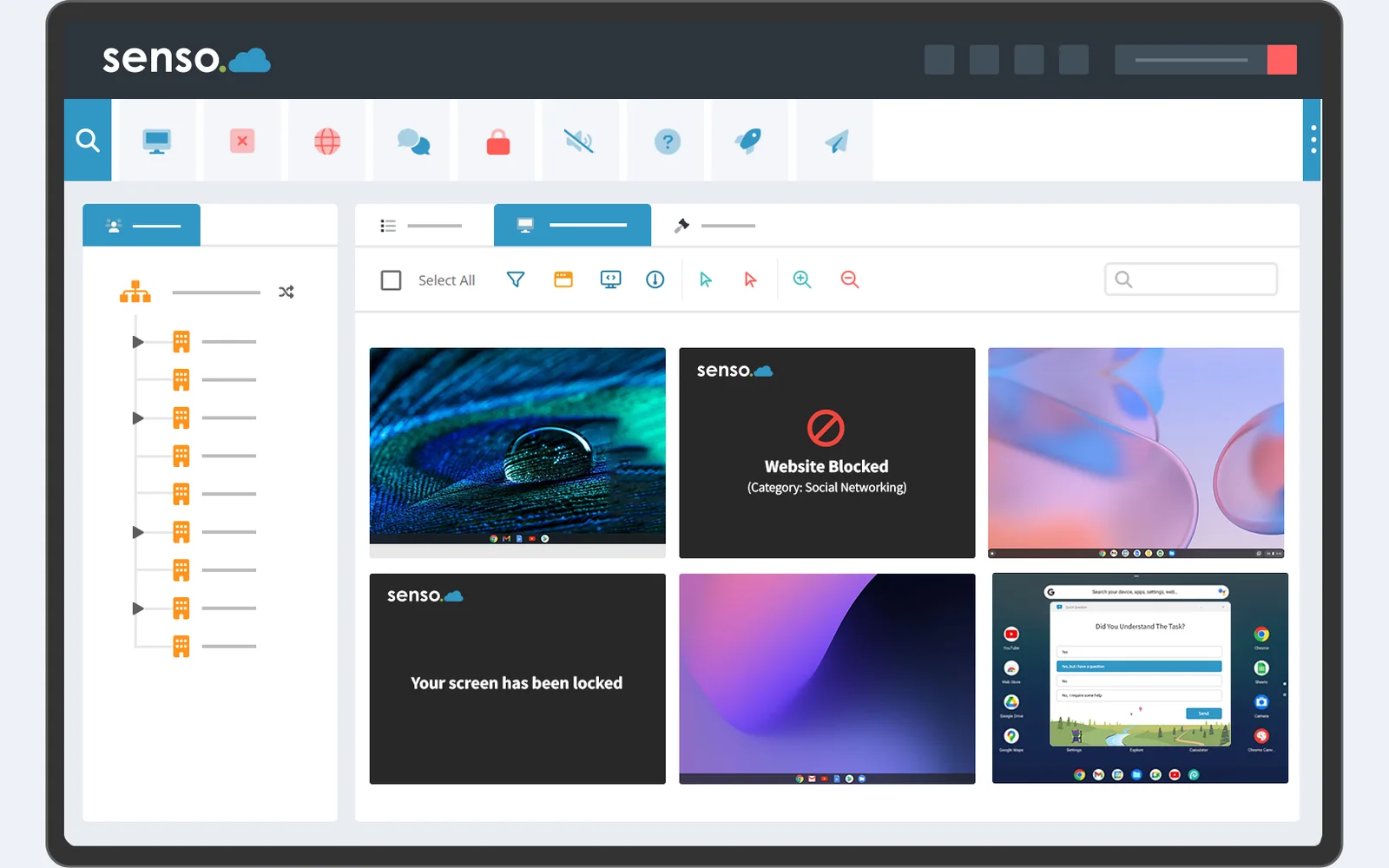
Built natively on Microsoft Azure and deployed in minutes through Microsoft Intune or GPO, Senso Cloud removes the server upkeep and device lag of legacy tools.
- One-click “Allow Only” web locks. Instead of waiting on IT to block the latest AI chat domain, teachers use Senso Scenes to toggle an Allow Only list for their class, locking students into a single assignment URL or digital textbook while blocking the rest of the web.
- Full desktop live thumbnails. Powered by low-bandwidth WebRTC streaming, teachers see real-time thumbnails of every Windows, Chromebook, or Mac screen, not just browser tabs, and can close unauthorized windows or lock screens in a click.
- Visual threat and keyword logging. Senso logs attempted keyword and URL violations with automatic contextual screenshots, so staff have an audit trail if a student tries to reach restricted AI tools.
Curious what Senso Cloud would cost for your school? See Senso Cloud pricing, or request a free trial and test it on your own devices.
Learn more about Senso Cloud →
Impero Education Pro: best for granular Windows desktop, application and window-title control
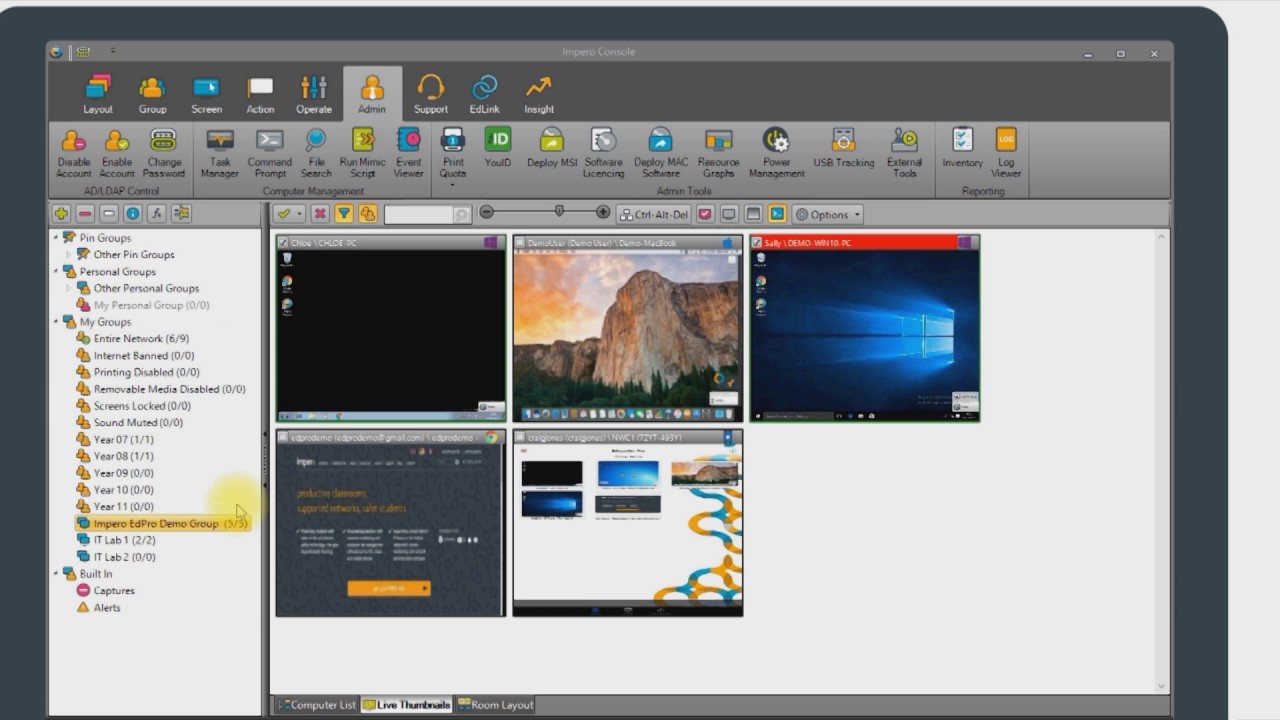
For Windows-heavy environments and computer labs where browser-only extensions fall short, Impero Education Pro monitors the entire operating system.
- The Impero Computer Viewer. Gives teachers and proctors a high-definition live grid of every student desktop, including dual-monitor setups, alongside active application and window titles.
- Block applications, executable files and window titles. Students often try to bypass browser policies by running portable browsers, local AI wrappers, or split-screen utilities. Impero lets teachers and IT block specific applications, executable paths, and even window-title keywords in real time.
- Instant exam allow-lists. Teachers can apply strict website allow-lists, disable copy and paste, freeze keyboards and mice, or broadcast their screen across the room in seconds.
Curious what Impero Education Pro would cost for your school? See Impero Education Pro pricing, or request a free trial and test it on your own devices.
Learn more about Impero Education Pro →
StudentKeeper (powered by ContentKeeper): best for stopping VPN bypasses and capturing student AI prompts
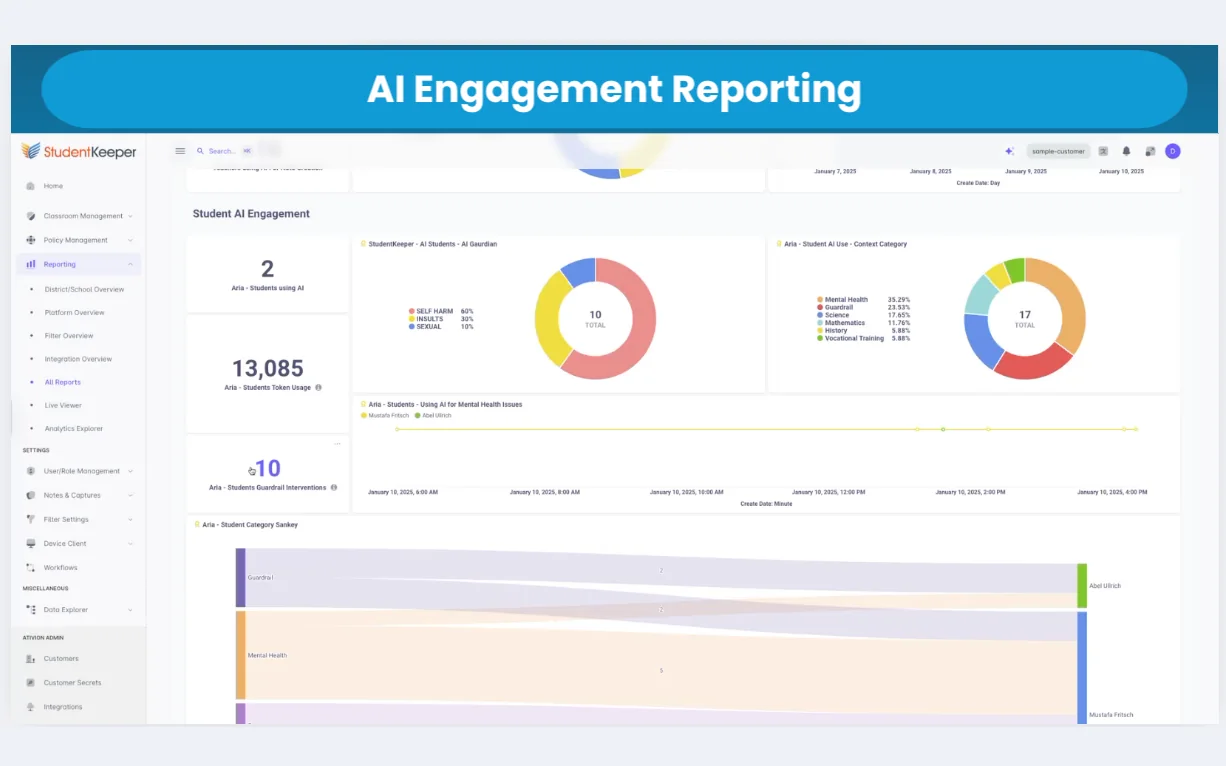
Developed by Ativion (uniting the engineering of ContentKeeper and Impero), StudentKeeper combines classroom screen management with enterprise-grade web filtering in a single cloud console.
- Stops VPNs, proxies and AI bypasses (App Defender). Roughly 65% of students attempt to bypass school filters using proxies or VPNs. Built on ContentKeeper’s deep SSL inspection and App Defender, StudentKeeper detects and blocks proxy and VPN circumvention mid-session.
- Captures actual AI prompts and responses. Rather than leaving schools blind to how AI is used, StudentKeeper can block unauthorized AI sites or capture the exact prompts students type into generative AI tools and the responses they receive, giving educators and safeguarding teams full context.
- Custom exam session trigger captures. Teachers can set custom session triggers (for example flagging the terms “ChatGPT”, “summarize”, or “rewrite” during an in-class essay) to automatically capture a timestamped screenshot and alert the teacher right away.
Curious what StudentKeeper would cost for your school? See StudentKeeper pricing, or request a free trial and test it on your own devices.
Learn more about StudentKeeper →Add exam lockdown browsers and clear assignment rules
Technology alone cannot solve an academic integrity problem if students do not know the rules, or if high-stakes tests are delivered in an open browser.
Dedicated lockdown browsers for high-stakes exams
When teachers run formal LMS quizzes or finals rather than daily classroom instruction, pair your monitoring stack with a dedicated lockdown browser:
- Respondus LockDown Browser runs across Windows, Mac, Chromebook, and iPad, and integrates with major LMS platforms (Canvas, Blackboard, Schoology, Moodle). In Canvas it covers Quizzes rather than standard essay Assignments, and IT should test deployments ahead of time to avoid assessment-day startup crashes.
- Safe Exam Browser (SEB) is an open-source lockdown browser developed by ETH Zurich. It works with almost any web-based exam system and turns a Windows PC into a secure workstation, though it takes more upfront IT configuration to build and distribute encrypted
.sebconfiguration files.
Practical takeaway: comparison sites claiming lockdown browsers can be defeated with hardware overlays or secondary devices are often marketing bypass tools, yet the underlying lesson holds. Lockdown browsers stop casual tab-switching, but they do not replace live screen monitoring (covered above) or thoughtful assignment design.
What teachers and schools must put in syllabi and assignments
Tech teams often get pulled into discipline disputes where a student says, “I didn’t use ChatGPT to write it. I just used Grammarly or Edge Rewrite to fix my paragraphs, and the assignment didn’t say I couldn’t.”
IT leaders can save hours of investigation by asking academic leadership to require three things on every digital assignment:
- Explicit “AI traffic light” labels on every prompt.
- Red (no AI allowed): “No generative AI, AI search summaries, or AI auto-rewrite tools (including Copilot, ChatGPT, or Grammarly Go) may be used at any stage. All work must be typed directly inside the assigned document.”
- Yellow (AI permitted for brainstorming only): “AI may be used for outlining or idea generation, provided you paste your full prompt-and-response transcript at the end of your submission.”
- Green (AI encouraged with critique): “Students are expected to use AI and will be graded on how they fact-check, revise, and critique the AI’s output.”
- Mandatory version history (Word AutoSave or Google Docs). Require students to draft essays from start to finish inside a single OneDrive-synced Word document or Google Doc. A document whose version history jumps from a blank page to 800 polished words in 12 seconds gives teachers clear, objective evidence without relying on a detector score alone.
- In-class checkpoints and two-minute oral defenses. Have students complete their outline in class while the teacher monitors screens with Senso, Impero, or StudentKeeper, or ask two quick verbal questions about their thesis at submission.
Check student work afterward with an AI detector
Everything above works before and during an assignment. Once work is handed in, teachers often want a second look at an essay that reads oddly polished. An AI detector can help with that, as long as it is treated as one piece of evidence and not a verdict.
Tools like Pangram scan a piece of writing and estimate which parts were written by AI. According to Pangram, its tools for teachers include:
- Sentence-level highlighting that shows which passages look AI-generated and which look human, so a teacher sees mixed authorship instead of a single pass or fail score.
- AI assistance detection that separates fully AI-generated text from writing a student only polished with AI.
- A built-in plagiarism check that runs in the same scan and links to matching sources.
- A Chrome and Firefox extension for scanning text in places like Google Docs.
Pangram also states a false positive rate of 1 in 10,000 and says outside researchers have verified its accuracy. Those figures come from the vendor, so test any detector yourself before relying on it.
How teachers can use a detector fairly
- Test it first. Run a few pieces you know are human-written, including your own, and a few you know came from AI, and see how the tool responds.
- Use the result to start a conversation. A flagged passage is a reason to look closer, not proof of cheating.
- Compare it with other evidence. Check the document’s version history and any writing the student produced in class.
- Ask the student to explain their work. A short talk about the thesis and sources should come before any disciplinary step.
- Check privacy first. Confirm with your institution’s privacy officer that uploading student work to a third-party tool fits your policies, including FERPA.
No detector is perfect. Never use a score as the only basis for an academic integrity decision. Codework does not sell Pangram. It is named here as one example of this kind of tool.
Checklist: how IT should validate a solution before buying
Before signing a multi-year contract for classroom management or AI-blocking software, run this four-part validation pilot:
- Ask for a reference school with your exact device and identity mix. Verify how the agent performs in an environment matching your blend of Windows 11, Chromebooks, and Microsoft Entra ID.
- Run a 2-week live pilot against real AI tools. Test whether Senso Cloud, Impero Education Pro, or StudentKeeper:
- Blocks current AI chat sites, AI browser extensions, and search-engine AI sidebars.
- Gives teachers a one-click “Allow Only” mode they will actually use without calling IT.
- Detects when a student opens an unmanaged browser, uses a VPN, or switches to a mobile hotspot.
- Measure over-blocking and helpdesk ticket volume. Track whether filtering rules accidentally block legitimate LMS embeds, educational YouTube videos, or state testing portals.
- Verify student privacy and after-hours boundaries. Negative public reviews of school monitoring overwhelmingly center on privacy outside school hours. Confirm in your configuration and contract that live screen viewing turns off automatically outside bell hours and that data-retention terms meet your institution’s compliance standards.
Classroom management platforms mentioned in this guide
Senso CloudCloud-native classroom control with one-click Allow Only scenes and live WebRTC thumbnails.See Senso Cloud →Impero Education ProFull Windows desktop viewing with application and window-title blocking.See Impero Education Pro →StudentKeeperClassroom monitoring plus ContentKeeper filtering, VPN blocking and AI prompt capture.See StudentKeeper →Want to test Senso, Impero Education Pro, or StudentKeeper on your Windows fleet?
Codework is an authorized education partner for all three platforms. We help schools compare them side by side and launch guided 2-week pilots tailored to your exact device mix.