Impero Education Pro logoImpero EdPro by Ativion

Impero Education Pro classroom management software

Give teachers real-time screen visibility and one-click classroom control across Windows, Mac, Chromebook, and iPad, while giving IT and safeguarding teams centralized log auditing, remote control, power schedules, and print management on your own server.
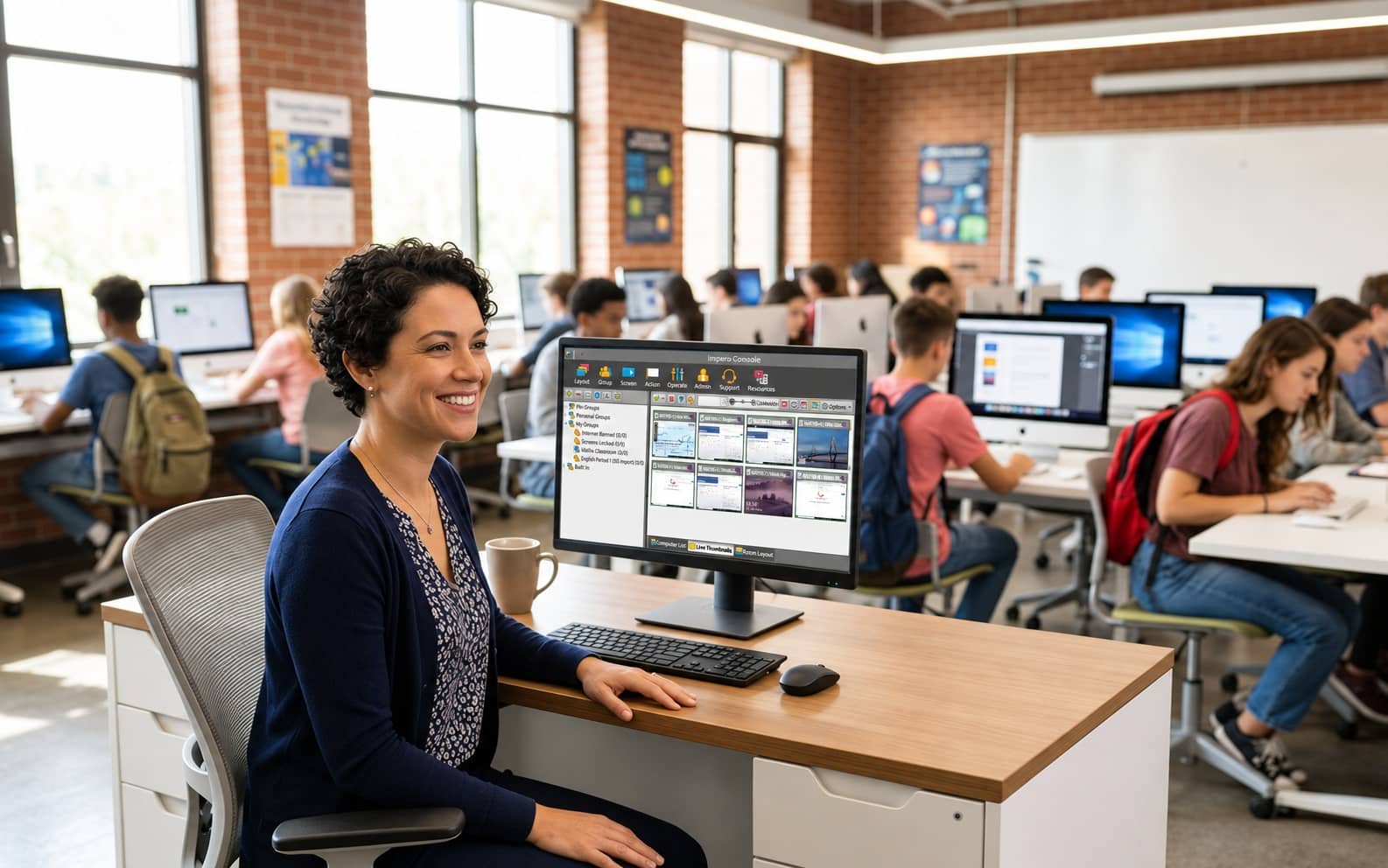
Impero Education Pro Console displaying live student screen thumbnails, Group toolbar controls, and Broadcast Screen options
Keep Students on TaskSee every student screen live and lock distractions in one click
On-Premises ServerSelf-hosted on your own network or private cloud, up to 5,000 devices per server
Like-for-Like Vision UpgradeThe direct desktop & lab successor for Netop Vision and Impero Classroom
Works withWindows Desktop & ServermacOSChromeOSiPadOS
Product walkthrough

See Impero Education Pro in action across the classroom and network

Watch how teachers lock distractions and broadcast demonstrations in seconds while IT and safeguarding leads manage devices from the same console.
Impero Education Pro classroom management and network administration console walkthrough
Built for your entire campus

Impero Education Pro works for every role on campus

Select your role to see the exact tools your team will use every day.

For K-12 & higher ed instructors

Every student screen in view, every lesson on track. Focused.

Supervise live thumbnails of every student device, broadcast your screen or a student’s work to the class, and open today’s lesson website across 30 computers in one click.
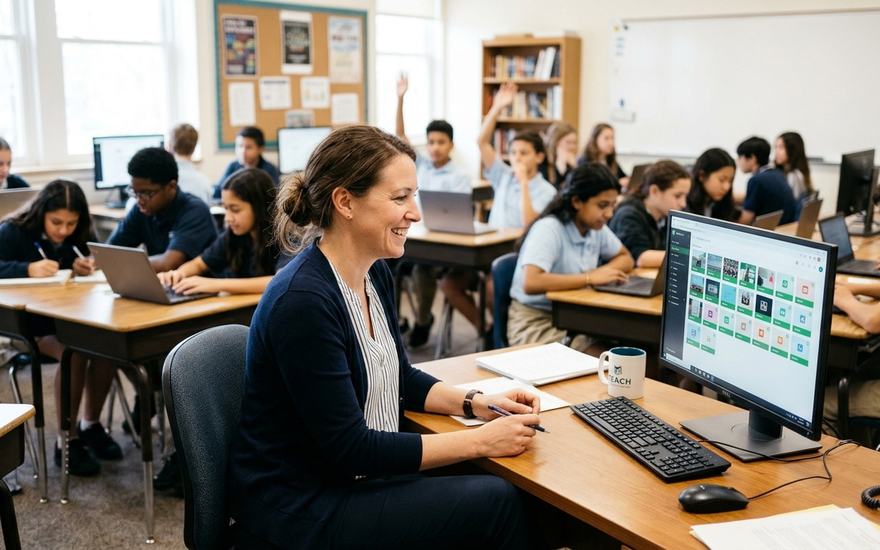
✦ Live Thumbnail & List View✦ Broadcast Screen✦ 1-Click Lock Group & Internet✦ Allowed Websites (30-Min Timer)✦ Run Website/File & Assign Tasks
Request a Free Trial
Impero Education Pro teacher console showing Live Thumbnails, Lock Group, Unlock Internet, and Broadcast Screen toolbar buttons
For Windows labs, Mac suites & mixed fleets

Purpose-built for Windows, Mac, and dual-monitor computer labs. Controlled.

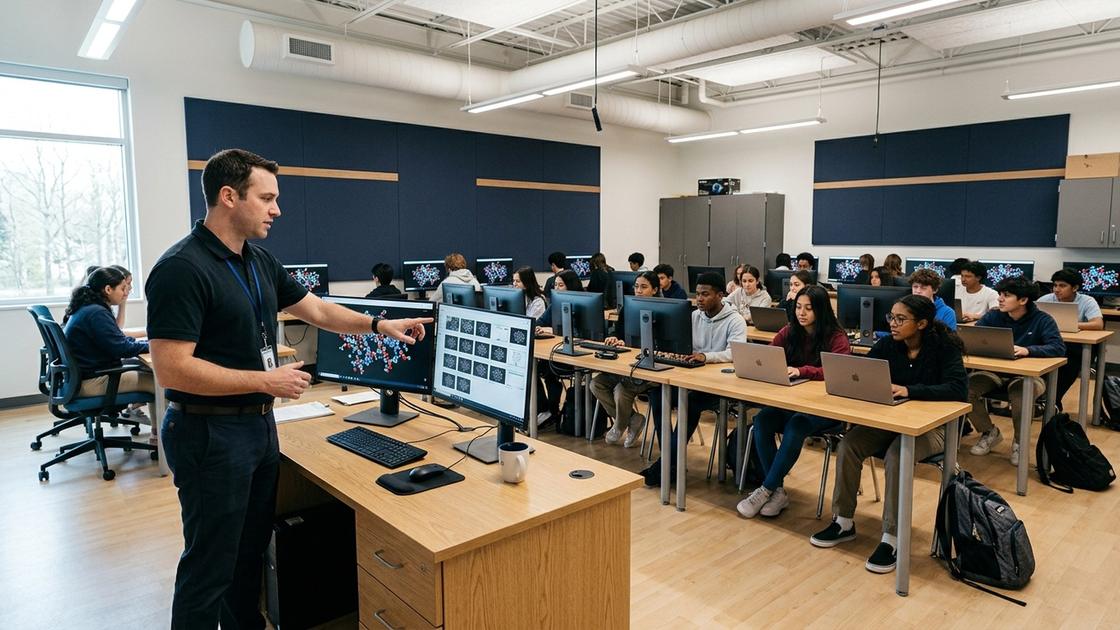
Unlike browser-only extensions that only see inside Chrome tabs, Impero Education Pro monitors the full Windows and macOS desktop, local software applications, USB drives, and multi-monitor workstations.
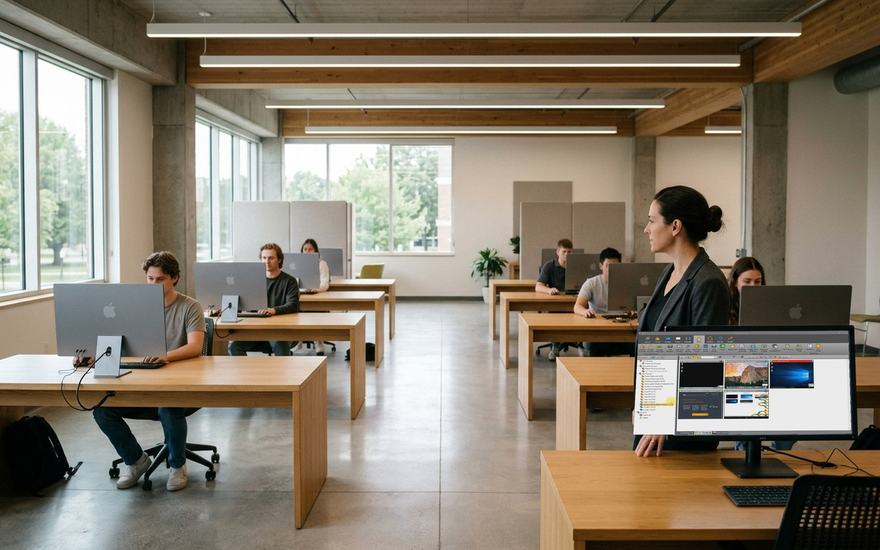
✦ Full Desktop & App Visibility✦ Send & Collect Files✦ Unlock Station & Remote Log Off✦ Basic Console Only Mode✦ Disable Printing & Mute Sound
Get a Computer Lab Quote
Impero Education Pro Action and Operate toolbars showing Send File, Collect Files, Run Website/File, and Unlock Station controls
For student safety & wellbeing teams

Contextual keyword detection and timestamped incident logs. Evidence-backed.

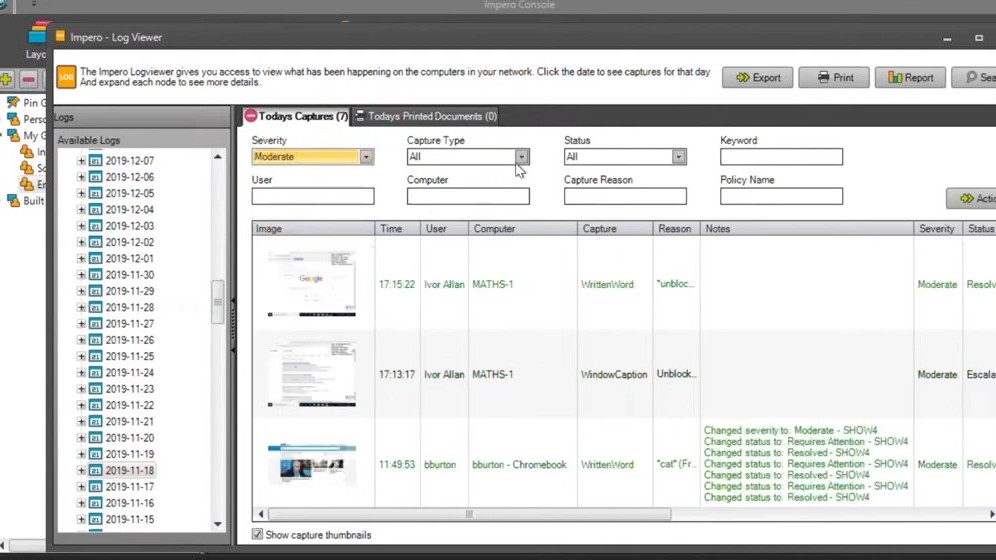
Detect concerning keywords across websites, applications, and window captions automatically, capturing timestamped screenshots or screen recordings in the central Log Viewer with a structured case workflow.

✦ Managed Keyword Detection✦ Central Log Viewer & Timeline✦ Screenshot & Video Evidence✦ 6-Stage Case Status Workflow✦ 1-Click PDF Export & Whitelisting
Request a Free Trial
Impero Education Pro Log Viewer displaying the Violations tab, severity filters, screenshot evidence stamp, and case status workflow
For K-12 & college IT infrastructure teams

Remote control, asset inventory, power, and print quotas in one agent. Consolidated.

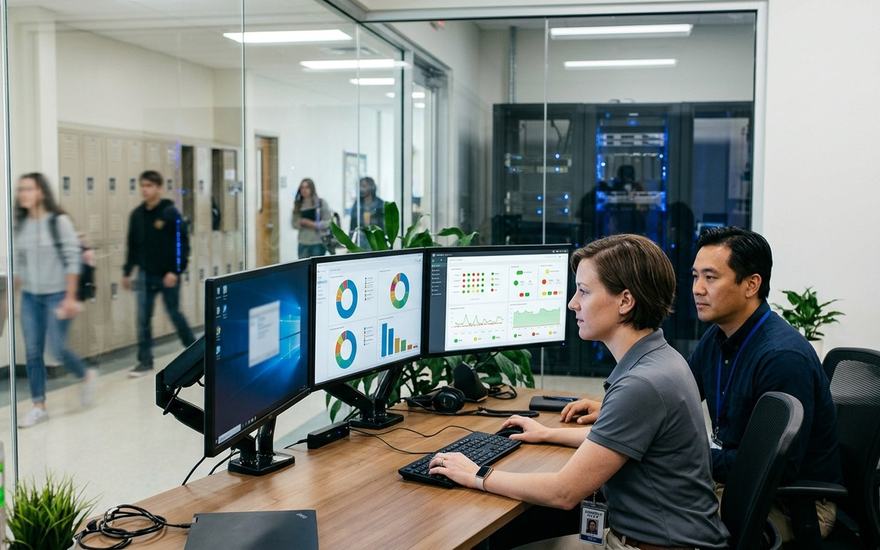
Eliminate extra endpoint agents by managing classroom computers, running multi-monitor remote support, tracking hardware and software inventory, automating overnight PC shutdowns, and enforcing print credit budgets from one server.
✦ Multi-Display Remote Control✦ Hardware & Software Inventory✦ Power Management & Wake-on-LAN✦ Print Management (PCredit)✦ Active Directory, GPO & SIS Sync
Request a Free Trial
Impero Education Pro Admin toolbar showing Deploy MSI, Power Management, Print Credits, Inventory, and Log Viewer icons
For quizzes, lab exams & assessment sessions

Lock down browsers, block USB drives, and poll comprehension live. Secured.

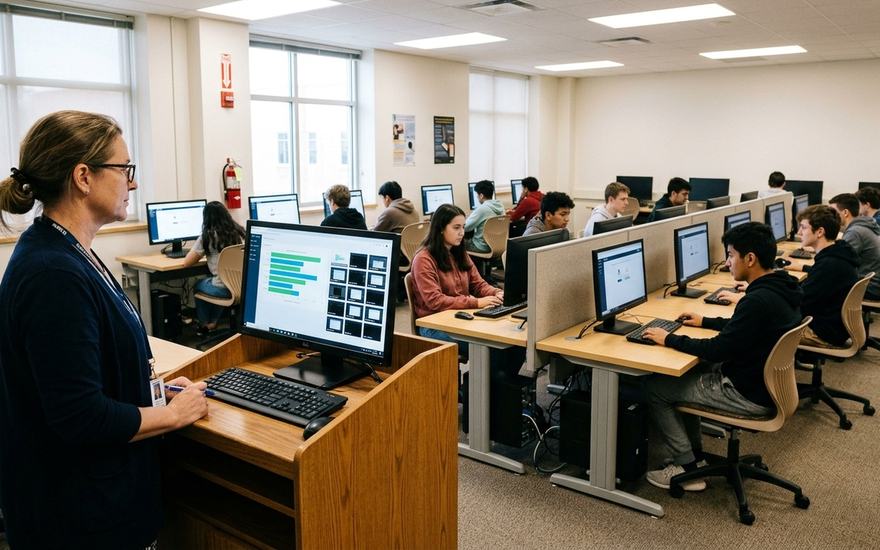
Secure computer labs for assessments by restricting students to approved exam URLs, disabling USB thumb drives and printers, and running live comprehension checks with Quick Question.
✦ Quick Question Polling✦ Exam Module & Allowed Websites✦ Disable USB & Removable Media✦ Group Screenshot Capture✦ Timed User Restrictions
Request a Free Trial
Impero Education Pro Quick Question dialog showing a 6-option multiple choice poll and live bar chart results by username
Feature Set 01 Classroom instruction & control

Live Computer Viewer, Broadcast Screen, and one‑click distraction locks

See who is off task without walking the rows, and control the whole room from one clean toolbar.
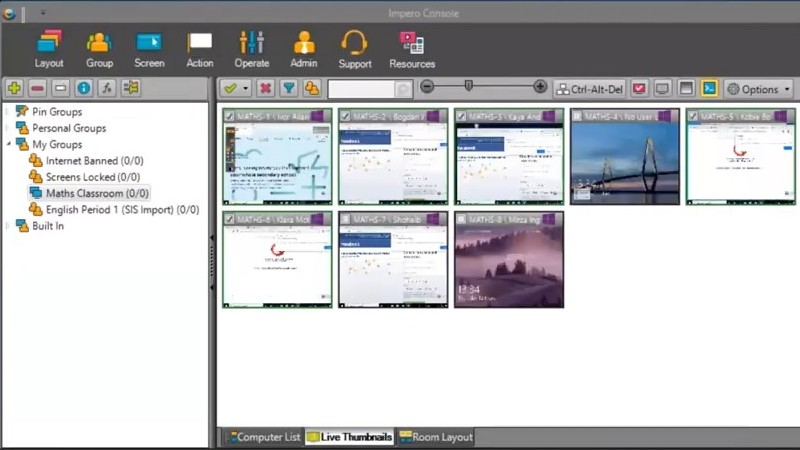
Impero Console showing live thumbnails of every student screen in a Maths Classroom group with the Layout, Group, Screen, Action, and Operate toolbar
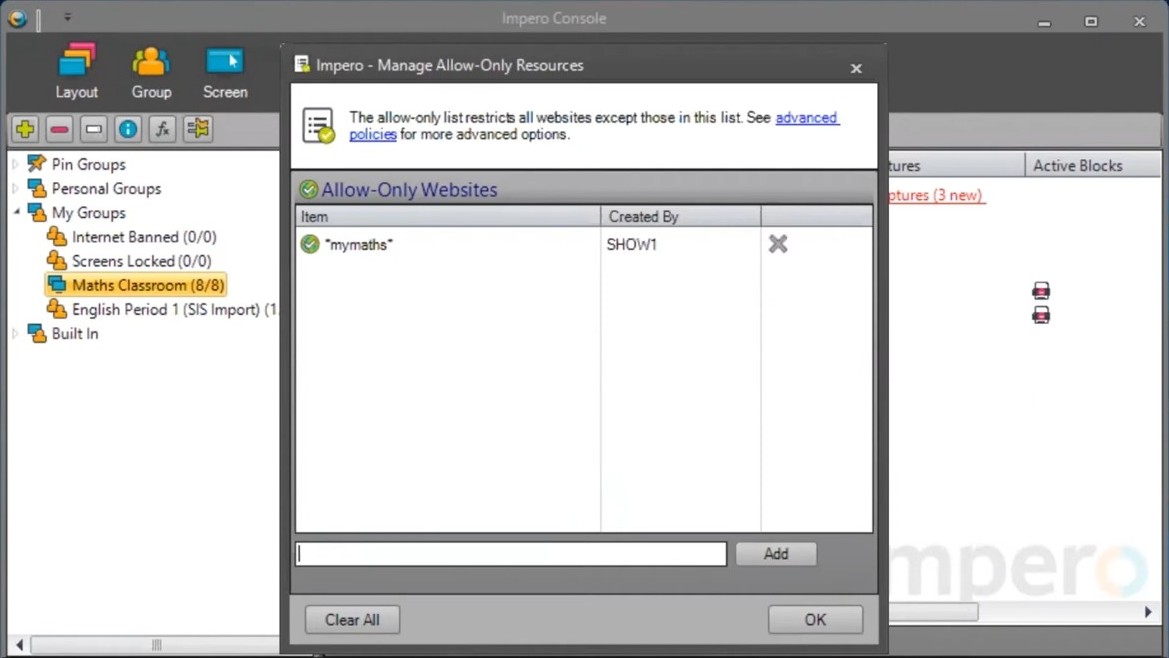
Impero Console Allow-Only Websites list with a wildcard entry added for a Maths Classroom group
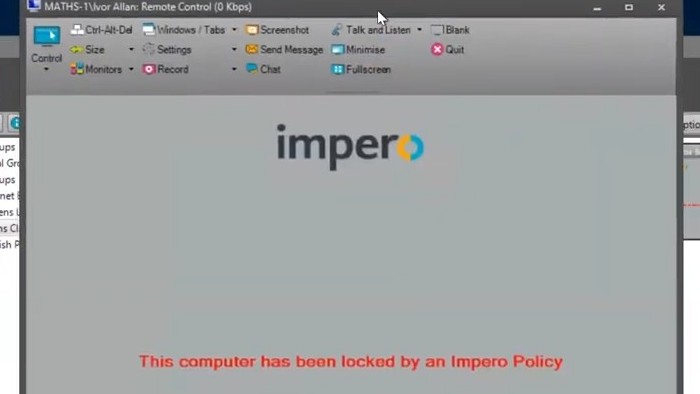
Impero Remote Control window showing a locked student computer with the message This computer has been locked by an Impero Policy
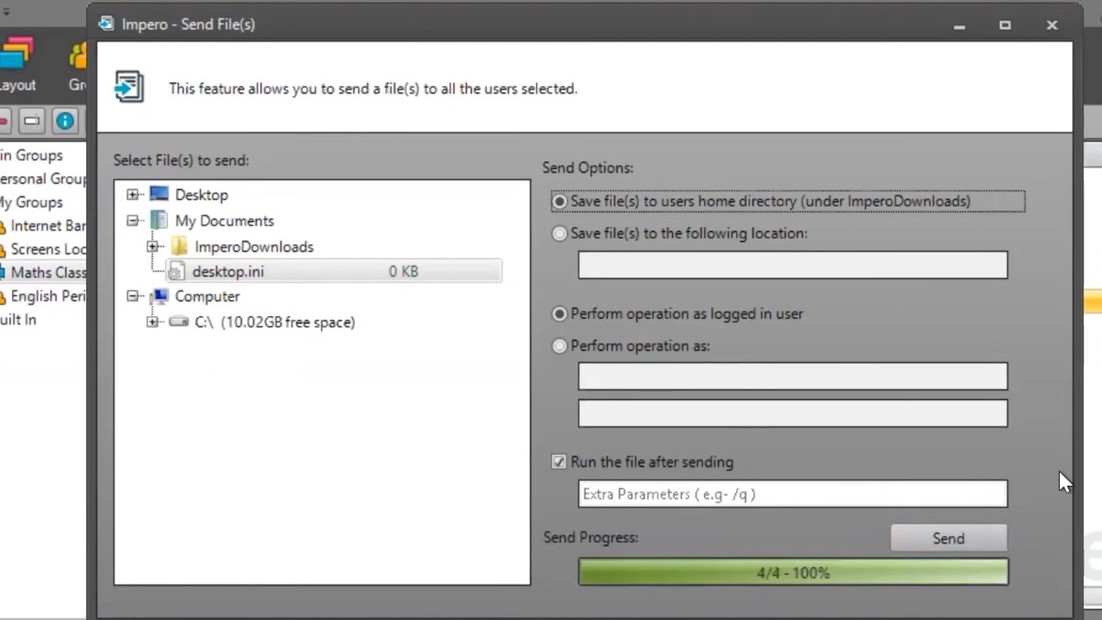
Impero Send File window with the send progress bar at 100 percent for the selected student computers
Feature Set 02 Student online safety & auditing

Keyword detection policies and a tamper-evident Log Viewer

Every event is relayed over encrypted connections to your central server, so you can see who was on which machine and what they accessed.
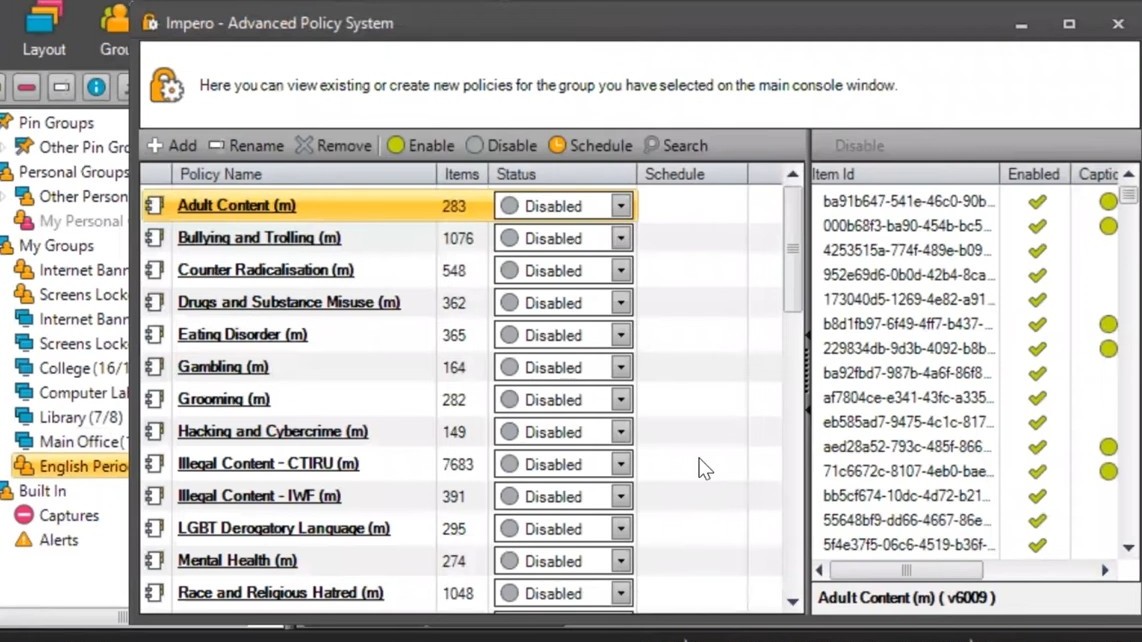
Impero Advanced Policy System listing managed keyword policies with enable and disable controls
Impero Log Viewer showing captured violations with severity, status, and screenshot thumbnails
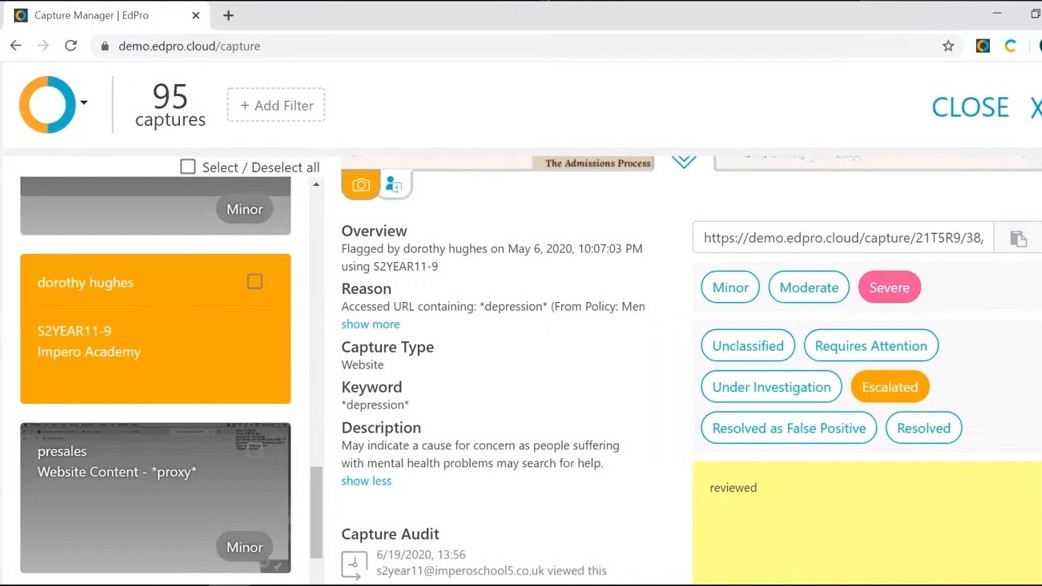
Impero Capture Manager showing a flagged capture with severity and case status options
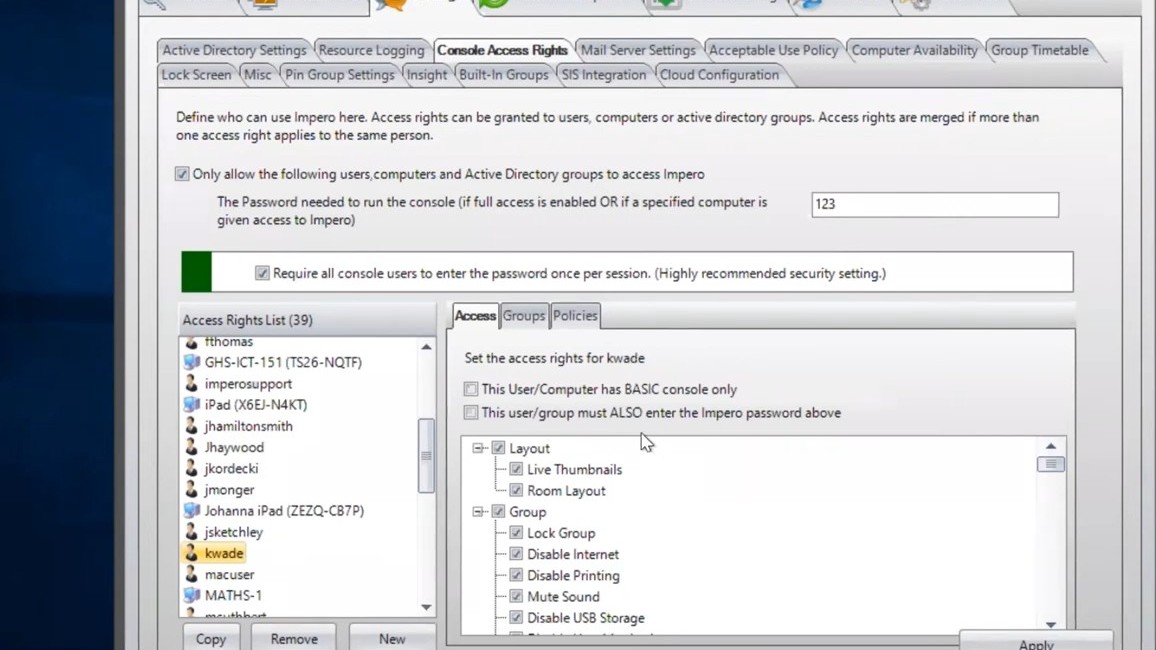
Impero Server Console Access Rights settings showing which console features a user can access
Feature Set 03 IT network & power management

Multi-display remote control, hardware inventory, Wake-on-LAN, and silent deployment

Combine classroom management with network administration and energy savings in the same endpoint client.
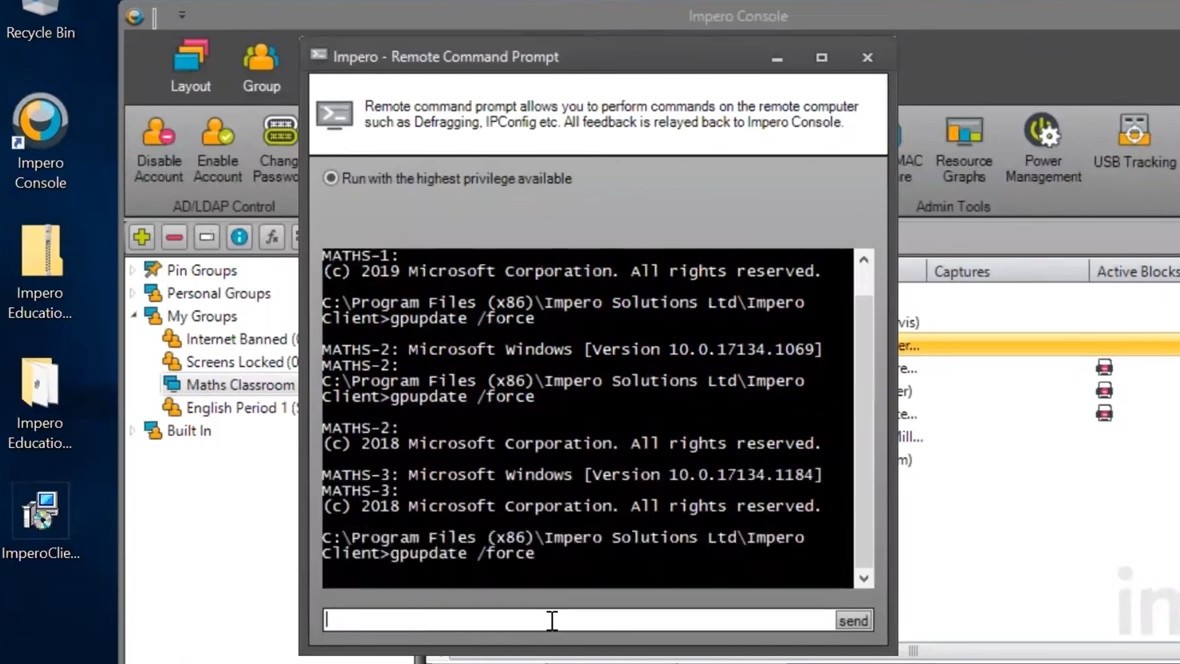
Impero Console Remote Command Prompt window running a command on several student computers at once
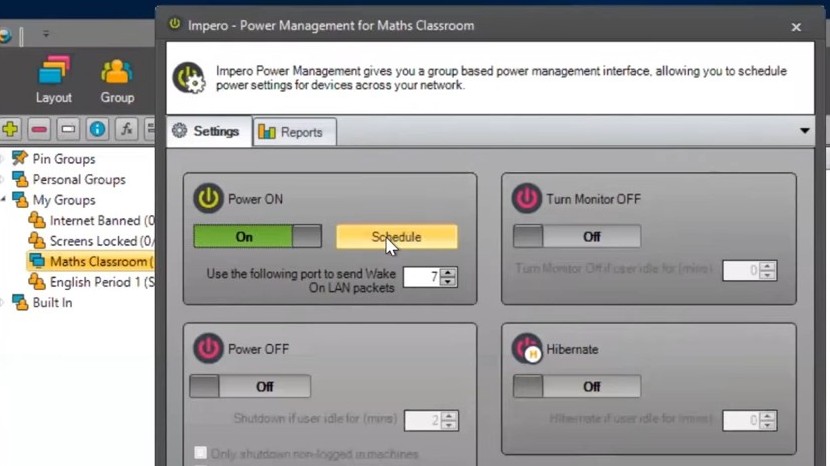
Impero Power Management settings with Power ON, Power OFF, Turn Monitor OFF, and Hibernate options and a schedule button
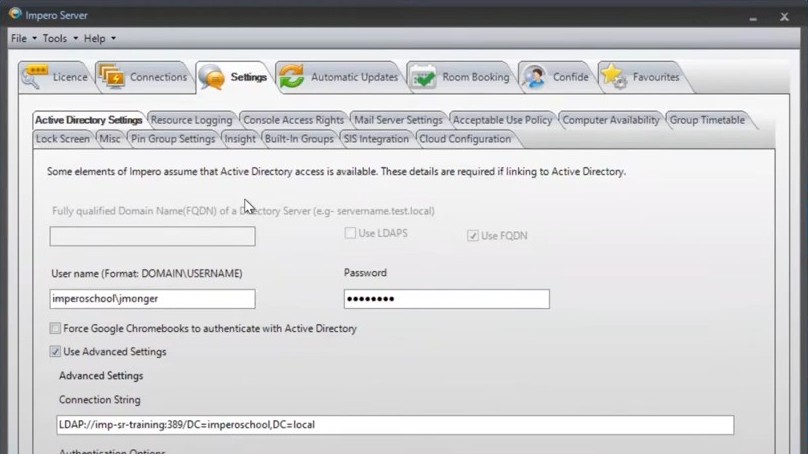
Impero Server Active Directory settings with the connection string and authentication options
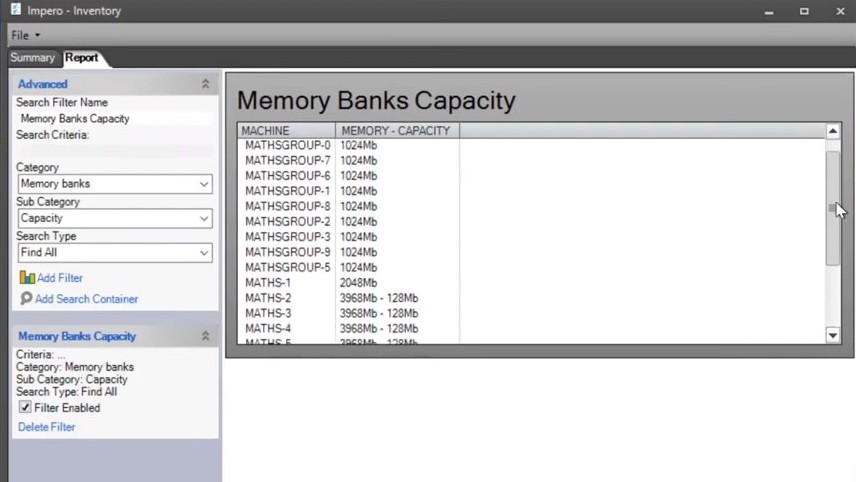
Impero Inventory report listing memory capacity for each computer in the school
Everything in the box

Everything included in Impero Education Pro

Every capability below is part of the standard license. No separate classroom or IT add-ons.

Teach & Engage

Broadcast Screen & Audio

Share your screen or any student’s with the whole class, with annotation tools and Talk and Listen audio.

Lock Screens
Disable Internet
Teach & Engage

Lock Screen & Lock Internet

Freeze screens, keyboards, and mice, or cut internet access, for a set time.

✓ *mymaths*✕ games-site.com
Teach & Engage

Allowed Websites & Block Lists

Allow only your lesson sites and block everything else, with a 30-minute extendable timer.

A
B
C
D
Teach & Engage

Quick Question & Assign Tasks

Poll the class and watch live bar-chart answers, then send task lists with completion dots.

Teach & Engage

Send, Collect & Launch Files

Push starter files, collect finished work into tidy folders, or launch a site on every PC.

SEVERE
MODERATE
MINOR
Online Safety

Log Viewer & Keyword Policies

Capture violations with screenshots and video, then review and export timestamped PDF evidence.

IT & Support

Multi-Display Remote Control

Take over up to 16 monitors per workstation, unlock stations, and run admin tools remotely.

IT & Support

Power Management & Wake-on-LAN

Wake labs each morning and shut them down at night, skipping machines still in use.

CPU
RAM
DISK
IT & Support

Hardware & Software Inventory

See CPU, memory, disk, and installed software for every computer, even when powered off.

Side-by-side comparison

How Impero Education Pro compares to Netop Vision, Senso Cloud, and StudentKeeper

Whether you want self-hosted server control for computer labs or a zero-server cloud platform, compare the options so your school picks the right architecture.

Impero Education Pro
Netop Vision / Impero Classroom (legacy)
Senso Cloud (cloud alternative)
StudentKeeper (by Ativion)
Hosting architecture
On-premises server, or self-hosted in your AWS / Azure / DMZ
Discontinued / legacy, no longer updated
100% cloud-native on Microsoft Azure, no local server
Cloud & hybrid, built on ContentKeeper inline / cloud appliances
Best fit
Windows & Mac computer labs, CTE and business suites, colleges, and mixed fleets wanting local server control
Schools migrating off legacy Vision or standalone Impero Classroom
1:1 Chromebook, Windows & Mac districts wanting zero-server cloud setup
Districts consolidating enterprise CIPA web filtering, classroom, and AI safety
Student devices
Windows, macOS, ChromeOS, iPadOS, thin clients
Windows, Mac, ChromeOS (legacy versions only)
Windows, ChromeOS, macOS, iOS
ChromeOS, Windows, macOS, iOS / iPadOS
Classroom screen & web control
✓ Live Thumbnails, Broadcast Screen, Lock Group / Internet, Allowed Websites, Quick Question, Send / Collect Files
✓ Basic Live View, Demo, Attention Lock & Web Lock
✓ Live WebRTC Thumbnails, Broadcast, 1-Click Scenes, Chat & Quizzes
✓ Live Thumbnails, Lock, URL Redirect, Dynamic Parent Groups & ARIA AI
Student safety & evidence logs
✓ Managed keyword policies + Log Viewer (screenshots, video, timeline & PDF export)
✗ Not included in Netop Vision
✓ AI Visual Threat Analysis, Senso Blur, Keyword Libraries & CPOMS sync
✓ ML Capture Triage, OCR, AI Prompt / Response Capture & Auto-Blur
IT network, power & print tools
✓ 16-display remote control, inventory, power management (WoL) & PCredit print quotas
✗ Classroom-only
✓ Cloud remote control, asset inventory, power & command prompt
✓ ContentKeeper 1G to 100G web filtering, App Defender & Zero-Prompt ID
Frequently asked questions

Frequently asked questions about Impero Education Pro

Getting started

What is Impero Education Pro?

Impero Education Pro (often called Impero EdPro, developed by Ativion, formerly Impero Software) is an all-in-one classroom management, student online safety, and IT network management software suite. It lets teachers view live student screens, broadcast demonstrations, lock devices, and restrict websites across Windows, macOS, ChromeOS, and iPad, while giving safeguarding leads a central Log Viewer for keyword alerts and giving IT teams remote control, hardware and software inventory, power management, and print credit controls.

Who is Impero Education Pro built for?

Impero Education Pro is built for K-12 schools, school districts, community colleges, and universities. IT directors and network managers deploy and manage the central Impero Server, classroom and CTE / business lab teachers use the Impero Console (or web interface) every period to guide students, and safeguarding leads and administrators use the Log Viewer to investigate online safety violations. It is an institutional platform licensed to educational organizations, not for individual consumer or student use.

How do I download and install Impero Education Pro?

To get the setup files, Request a Free Trial and our team will provide the Server and Client installer package along with your activation key. Installation then follows three parts:
  1. Install the Impero Server on a dedicated Windows machine (or in your school’s private AWS / Azure environment) and activate it with your trial or school license key.
  2. Deploy the Impero Client silently to Windows PCs (via Group Policy, Intune, SCCM, or the built-in Remote Deploy MSI wizard), install it on Macs, push the Chrome extension via Google Admin Console for Chromebooks, or deploy the iPad app via MDM.
  3. Set Console Access Rights. Student and teacher computers use the same client package; IT simply designates which staff members or Active Directory groups can open the Impero Console in Server settings.

Advanced IT & network administration

How many devices can a single Impero Server support?

A single Impero Server supports up to 5,000 concurrently connected client devices and up to 1,200 groups. It runs on a dedicated Windows or Windows Server machine (not recommended on a Domain Controller) with 120 GB of free disk space, keeping free space at least 3x the size of your Data\Logs folder. Processor and RAM scale with fleet size: dual-core / 4 GB RAM for up to 1,500 clients, quad-core / 8 GB RAM for up to 3,000, and octa-core / 8 GB RAM for up to 5,000.

How do Impero Clients find the Impero Server across multiple VLANs or subnets?

On a single flat subnet, the Impero Client locates the Impero Server automatically via UDP broadcast. On segmented networks with multiple VLANs, create an internal DNS Host (A) record named impero_server (or IMPERO-SERVER for RFC-compliant non-Windows DNS) pointing to the server’s IP address. Alternatively, deploy a ServerIP.txt or ServerIPFixed.txt file to client machines, or pass the server IP via MDM (imperoServerAddressKey on iPadOS) and Google Admin bookmark policies on Chromebooks.

How does Impero Education Pro handle network communication and antivirus exclusions?

Clients and Consoles talk to the Impero Server over your internal LAN / VLAN, starting at TCP/UDP 30016 for main server communication, TCP 30017 for audio, TCP 30019 for browser extension loopback, TCP 30020+ for peer-to-peer screen viewing and file transfer, and TCP 30021 to 30022 for Chromebook connections and thumbnail streaming. The server uses outbound HTTPS (TCP 443) to *.imperosoftware.com and *.globalsign.com for licensing and updates. During deployment, IT adds standard antivirus folder exclusions for the Impero installation directory.

How does Impero Education Pro sync class rosters with Active Directory, Clever, ClassLink, or Google Classroom?

Impero Server integrates with Active Directory and LDAP so IT can map Console Access Rights to AD security groups, create dynamic User and Computer groups using wildcards (such as IT01*), and set Group Priorities (Low, Medium, High) so staff privacy rules always supersede room rules. For class rosters, sync automatically via Clever, ClassLink, OneRoster, Google Classroom (up to 400 classes per teacher), or scheduled daily UTF-8 CSV imports (teachers.csv and students.csv).

Since Impero Education Pro is self-hosted, can it monitor remote or take-home student laptops?

Yes. Ativion supports four options for off-campus devices:
  1. Campus VPN: remote devices connect through your school’s VPN tunnel and behave like on-campus machines.
  2. DMZ public IP: place the Impero Server in your firewall DMZ, reachable by a public IP, and view live thumbnails through the browser-based web interface.
  3. Cloud-hosted server (AWS or Azure): host your Impero Server instance in Amazon Web Services or Microsoft Azure.
  4. Offline policy enforcement & sync (Windows & Mac): with no network changes at all, clients keep enforcing their last received safety and block policies off campus, log activity locally, and upload captures to the Log Viewer when the laptop reconnects to the school network.

Procurement, comparisons & governance

How does Impero Education Pro prevent students from bypassing monitoring or opening the teacher console?

Impero Education Pro runs as a protected background system service (ImperoClientSVC.exe and ImperoGuardianSVC.exe) rather than a removable user-space app. Administrators can disable Windows Task Manager, Command Prompt, registry editing, and USB .exe launches by policy. Although the same MSI installs both the Client and the Console, access to the Impero Console is locked on the server through Console Access Rights and a session password, and IT can enable the Hide Desktop Shortcut setting on the Students group so the Console icon never appears on student desktops.

Does Impero Education Pro turn on or record student webcams?

No. Impero Education Pro has no function to turn on, control, or record a device’s webcam. For safeguarding evidence and instructional review, it can capture screenshots or record the on-screen desktop activity of a Windows or Mac computer (which records whatever is visible on screen, such as an open video meeting window, without audio and at a reduced frame rate), protecting student and household camera privacy.

Is Impero Education Pro the replacement for Netop Vision and standalone Impero Classroom?

Yes. Following the combination of Impero Software, Netop, and ContentKeeper under Ativion, standalone Netop Vision and legacy Impero Classroom have been retired. Impero Education Pro is the closest like-for-like replacement for computer labs and on-premises school networks, giving teachers the same familiar one-click live screen view, screen broadcast, attention lock, and web lock so staff can transition with virtually no retraining.

When should a school choose Impero Education Pro vs. Senso Cloud or Ativion StudentKeeper?

  • Choose Impero Education Pro if your school or college wants on-premises (or private AWS / Azure) server control, manages Windows and Mac computer labs alongside Chromebooks, and wants 16-display IT remote control, Wake-on-LAN power schedules, and PCredit print management in one license.
  • Choose Senso Cloud if you want a 100% cloud-hosted SaaS platform on Microsoft Azure with no local servers, fast WebRTC screen monitoring for Chromebook, Windows, and Mac, and AI visual threat safeguarding.
  • Choose StudentKeeper (powered by ContentKeeper) if your district wants to consolidate enterprise inline / cloud CIPA web filtering, VPN and proxy circumvention blocking (App Defender), classroom management, and ARIA AI in one cloud / hybrid platform.

How is Impero Education Pro licensed, and how do we get a quote or a free trial?

Impero Education Pro is licensed as an annual subscription based on the number of devices, for single-school or multi-site district deployments. Get a Quote within one business day, or Request a Free Trial to receive the official Server and Client installer files, trial license key, and guided setup support so your IT team and teachers can test Impero Education Pro on your own network before purchasing.

Impero Education Pro is developed by Ativion (formerly Impero Software). All product names, logos, and brands are property of their respective owners.

Start your trial or request pricing

Bring Impero Education Pro to your computer labs and classrooms

Request a tailored per-device quote for your school, college, or district, or request a free trial to get the installer package and test it on your network.

Switching from Netop Vision or renewing?
Ask for a like-for-like migration quote or multi-year volume pricing for your Windows, Mac, and Chromebook fleet.
Get a Quote →
Ready to download and test Impero Education Pro?
Request a free trial to receive the official Impero Server and Client setup files, trial license key, and guided onboarding.
Request a Free Trial →